• About Me
    • Lab Environment
    • Site Mission
    • Training Resources

My Path Forward

  • Let’s talk Binwalk

    June 20th, 2023

    Binwalk is a super useful tool that searches a given file’s contents and allows you to analyze and extract them. A common use for this is reverse engineering binaries to discover hidden data. That said, you can also use this to identify files that are using the wrong extensions, find hidden files in various file types (PowerPoint, for example is a collection of files), and extract said files.

    To start with, using binwalk (filename) will display information about the file such as the different files that make up the original file. Let’s take PowerPoint for example. If you use binwalk example.pptx you will get some variation of the following:

    This is because a .pptx file contains a lot of different files that make up the final presentation. The view above shows the contents of the pptx file as well as the offset at which each file begins in both decimal and hexadecimal.

    If, for example, you weren’t sure where to look, but had an idea that perhaps there was a hidden file located with the original file, you could use binwalk -e to extract all of the files it found. In the example above, it would extract the zip files and all of the .xml files within those zip files in a folder. This may look like the below:

    You can then search for the hidden file or flag, if this was a CTF.

    If, however, you only want to extract some, or certain files (in this case PNGs), you can use the binwalk –dd ‘png image:png’ filename. This will extract all PNG files from the original filename. You can also use ‘binwalk –dd=’.*’ filename‘ to extract ALL files from the original filename. Sometimes I find this has more luck that a generic binwalk -e.


  • Browser.sqlite files

    May 28th, 2023

    Firefox saves browser history in a sqlite database format. If you’re trying to figure out what a user browsed to or downloaded within the browser (at a high level), these are the files you want to grab. Firefox stores the history and bookmarks together in a database file named places.sqlite, which is in a user’s profile folder.

    In general you would use this if you suspect a malicious file was downloaded onto a user’s machine and you’d like to figure out if came in via browsing the Internet with the Firefox browser.

    Once exported or saved from a machine, you can view it using MZHistoryView. This tool will show you the URL, first visited date, last visited date, count, Title, Link or typed URL and other useful information for piecing together what occured.

  • Netflow Log

    May 28th, 2023

    Netflow logs are VERY help when you can’t do a full packet capture (or don’t need to) and just require the metadata of the traffic. The metadata consists of the source and destination IPs, the source and destination ports, and the protocols used (also know as a 5 Tuple). By using these you will be able to tell where traffic originated from, went to, and on what ports/protocols, BUT you won’t be able to dissect the details of the packet to see exactly what was sent or received.

    Why is this useful? Well, to start with, just by knowing that an internal machine reached out to a known bad destination IP on port 80, could indicate that something “odd” is happening on your network. Or, for example, if you’re suddenly getting a flood of traffic from a source IP on the Internet that is hitting all of your company’s external IPs on contiguous ports could mean you’re being scanned.

    I’m going to walk through a CTF problem involving netflow logs and how to read relevant information from them – such as how many records are in the log, how many times each unique source IP shows up, and how many unique source IPs are in the log. These may seem arbitrary for this problem, buyt imagine that you’re trying to figure out how many source IPs are reaching out to a malicious destination. Or even how many malicious destinations are listed in the log.

    This problem involves netflow records that look like this:

    The tools I’ve used for this one are cat, grep, sed, wc, cut, sort, and uniq -c.

    First the log needs to be in a simple, commonly delimited format. For example, in the screenshot we can see that ports are separated by a colon, and there’s an arrow indicating source to destination. Those have to go. I used the following set of commands to do that then trim the whitespace to one space per column. Note: I wasn’t concerned with the time, but please know that the following will also split up time to a spaced delimeter.

    cat netflow.txt| sed ‘s/->//g’ > netflownoarrow -> This removes the arrow.
    cat netflownoarrow| sed ‘s/:/ /g’ > netflowport -> This replaces the colon with a space.
    cat netflowport| sed ‘s/ */ /g’ > netflowfixed -> This trims the spaces down to one between columns.

    At this point I can start using the log to get data out of it. For example an easy one is cat netflowfixed | wc -l, which will give me the total number of records in the logs.

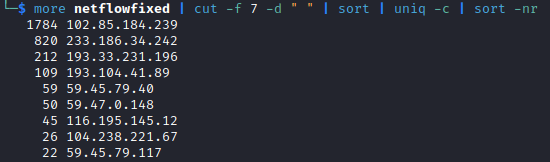
    I can also use cut commands to see how frequently each source IP appears in the log: more netflowfixed | cut -f 7 -d ” ” | sort | uniq -c | sort -nr. This will cut the 7th field (the source IP), sort it, then count the instances per IP, then sort that by high to low.

    I can also use this command to see how many total unique source IPs are in the log: more netflowfixed | cut -f 7 -d ” ” | sort -u | wc -l. This will cut the 7th field, sort by unique IPs, then count the number of lines.

    You can adjust the commands to do the same for any of the fields as long as you change the -f 7 (7th field) to whichever other field you’d like to use.

  • Site Mission

    May 26th, 2023

    Hey everyone who is reading this. I’m trying this new thing by starting a blog style site to document and share some of the projects I’ve been working on and the research behind them. I will gladly welcome any feedback or constructive criticism, I’m certainly not saying I got any of this right or did it the best way. I’ll adjust as necessary as time goes on.

    Part of the reason for this is that I’d like to improve on my ability to document what I’ve done. It’s great if I can solve the issue, but the real “win” is being able to both solve the issue AND document in such a way someone else can follow and also solve the issue. That way you have an endless number of people who can be called upon rather than just one. If you think that job security means you’re the only person who will ever know how to do X, then I’m afraid that at some point you might be sadly disappointed. In this day and age, with technology being what it is, it’s just as likely someone else will get frustrated with you not sharing that knowledge and learn it on their own, cutting you out of the process entirely. Also, it’s just plain bad business and mean.

    The secondary purpose is to provide resources for people getting into cybersecurity or those who want to expand their skillsets. I hope that the various posts will help someone trying to solve the same issues I’ve encountered.

Blog at WordPress.com.


Loading Comments...
 

    • Subscribe Subscribed
      • My Path Forward
      • Already have a WordPress.com account? Log in now.
      • My Path Forward
      • Subscribe Subscribed
      • Sign up
      • Log in
      • Report this content
      • View site in Reader
      • Manage subscriptions
      • Collapse this bar